Mac Mini Setup Guide for Beginners 2026 Step by Step
Mac Mini Setup Guide for Beginners (Step-by-Step 2026)

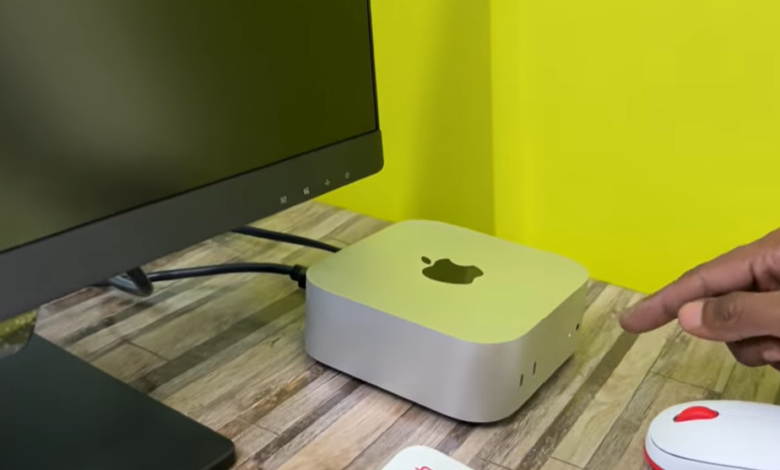
This guide explains how to set up a Mac Mini step by step in 2026. Moreover, it covers everything from required accessories to software installation and performance optimization for beginners.
Introduction
Setting up a new computer can feel overwhelming, especially if you are using a desktop device for the first time. Unlike laptops, the Mac Mini does not come with a built-in display, keyboard, or battery, which means you need to connect everything manually. However, once you understand the setup process, it becomes simple and quick.
Moreover, the Mac Mini by Apple has become a popular choice because of its compact size and powerful performance. Therefore, it is widely used for office work, study, programming, and creative tasks. In addition, proper setup is very important because it ensures smooth performance and long-term reliability. As a result, this guide will help you complete the entire setup process easily, even if you are a complete beginner.
What You Need Before Setting Up Mac Mini
Before starting the setup process, it is important to gather all the necessary accessories. Since the Mac Mini is only a small desktop unit, you cannot use it without external devices. Therefore, preparing everything in advance will save time and avoid confusion.
You will need a monitor to display content, a keyboard for typing, and a mouse or trackpad for navigation. Moreover, an HDMI cable is required to connect the monitor to the Mac Mini. In addition, a stable internet connection is necessary for completing the setup and downloading updates.
Furthermore, having an Apple ID is also important because it allows you to access macOS features such as the App Store, iCloud, and system updates. As a result, having all these items ready will make the setup process smooth and stress-free.
Step-by-Step Mac Mini Setup Process
Connect the Power Cable
Firstly, take the power cable that comes with the Mac Mini and plug it into the device. Then connect the other end to a power outlet. After that, press the power button located at the back of the Mac Mini to turn it on.
Moreover, once the device starts, you will notice a light indicator and startup sound. Therefore, this confirms that your Mac Mini is working properly.
Connect the Monitor
Next, connect your monitor using an HDMI cable. Insert one end into the Mac Mini and the other into your monitor. After turning on the monitor, you will see
However, if the display does not appear, make sure the cable is connected properly. In addition, check the input source on your monitor settings. As a result, you will be able to fix most display issues easily.
Connect Keyboard and Mouse
After connecting the monitor, the next step is to connect your keyboard and mouse. You can use either wired devices via USB ports or wireless devices through Bluetooth.
Moreover, macOS automatically detects most accessories, which makes the process easier. Therefore, beginners do not need to worry about complicated setup steps.
Connect to the Internet
Now, connect your Mac Mini to the internet using Wi-Fi or an Ethernet cable. A stable internet connection is important because macOS needs to download updates and complete setup tasks.
Moreover, if you are using Wi-Fi, select your network and enter the password. Therefore, once connected, you can continue with the setup process without interruptions.
Complete macOS Setup
After connecting all devices, the macOS setup screen will appear. This is a guided process where you need to follow simple steps such as selecting language, choosing region, and signing in with your Apple ID.
In addition, you will create a user account and set a password. Moreover, macOS will ask about privacy settings and preferences. Therefore, you can customize your system according to your needs. As a result, your Mac Mini will be ready for use.
Installing Essential Software
Once the basic setup is complete, the next step is to install important software. This allows you to start working immediately. For example, you can install a web browser like Chrome, productivity tools like Microsoft Office, and communication apps.
Moreover, if you are a content creator, you can install video editing or design software. However, it is important to avoid installing unnecessary applications because they can slow down your system.
Therefore, always install only the software you really need. As a result, your Mac Mini will remain fast and efficient.
Performance Optimization Tips
To get the best performance, it is important to optimize your Mac Mini after setup. Firstly, make sure your macOS is updated to the latest version. Updates often include performance improvements and security fixes.
Moreover, you should manage storage by deleting unnecessary files and apps. In addition, closing background applications can improve speed. Therefore, keeping your system clean and updated ensures smooth performance.
Furthermore, using an external SSD can improve speed significantly, especially if you work with large files. As a result, your Mac Mini will perform better for longer periods.
Security Setup for Beginners
Security is another important part of the setup process. Firstly, set a strong password for your user account. Moreover, enabling FileVault encryption helps protect your data.
In addition, turning on automatic updates ensures your system stays protected from threats. Therefore, these simple steps can improve your device security significantly.
As a result, you can use your Mac Mini with confidence without worrying about data loss or security risks.
Backup Setup (Important Step)
Creating backups is essential to protect your data. macOS provides a built-in feature called Time Machine, which allows you to back up your files automatically.
Moreover, you can use an external hard drive or cloud storage for backups. Therefore, even if your system crashes, your data will remain safe.
As a result, setting up backups is one of the most important steps after installation.
Common Setup Mistakes to Avoid
Many beginners make mistakes during the setup process. For example, using low-quality cables can cause display issues. In addition, skipping updates can lead to performance problems.
Moreover, installing too many apps can slow down the system. Therefore, it is important to follow the correct setup steps and avoid unnecessary changes.
As a result, avoiding these mistakes ensures a smooth and efficient setup experience.
Pro Tips to Improve Setup Experience
After completing the basic setup, you can improve your experience by customizing your system. For example, you can set up multiple monitors to increase productivity.
Moreover, organizing your files and apps properly makes daily tasks easier. In addition, using keyboard shortcuts can save time. Therefore, small adjustments can make a big difference in your workflow.
As a result, your Mac Mini will become a powerful and efficient workstation.
FAQs
Is Mac Mini easy to set up?
Yes, the setup process is simple and beginner-friendly.
Do I need a monitor for Mac Mini?
Yes, since it does not include a built-in display.
Can I use wireless accessories?
Yes, Bluetooth keyboard and mouse work easily.
Conclusion
In conclusion, setting up a Mac Mini in 2026 is simple if you follow the right steps. Moreover, having the correct accessories and understanding the process makes everything easier. Therefore, beginners can quickly start using their device without any problems.
As a result, a properly set up Mac Mini provides excellent performance for work, study, and creative tasks, making it a great investment for the future.